Creating a company
You create a new company from the Companies overview using the + New button. The form opens as a modal dialog over the current page.
note
The + New button is only visible when your role has permission to add companies. If you do not see it, contact your administrator.
Steps
- Go to the Companies overview.
- Click + New in the top-right corner.
- The Add company dialog opens.
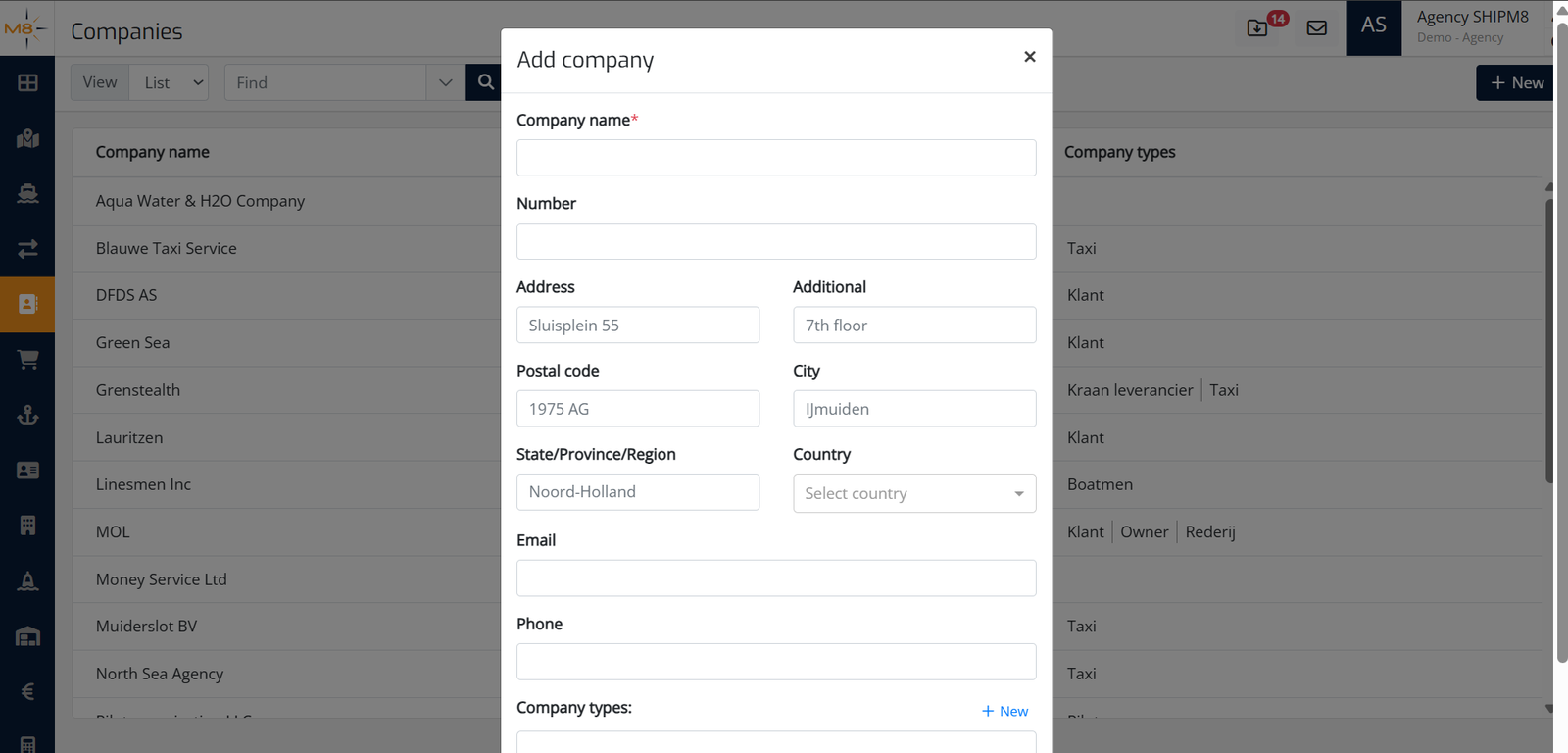
- Fill in the fields described below.
- Click Save to create the company and open its detail page.
Fields
Company details
| Field | Required | Description |
|---|---|---|
| Company name | Yes | The name of the company. SHIPM8 checks for duplicates when you leave this field — if a company with the same name already exists, a warning is shown. |
| Number | No | An internal reference number for the company. |
Initial address
You can record one address at creation time. All address fields are optional. Additional addresses can be added later from the company detail page.
Fields are grouped in pairs on the same row:
| Field | Description |
|---|---|
| Address | Street address line 1 (e.g. Sluisplein 55) |
| Additional | Street address line 2 (e.g. 7th floor) |
| Postal code | Postcode (e.g. 1975 AG) |
| City | City name (e.g. IJmuiden) |
| State / Province / Region | State, province, or region |
| Country | Select from the country dropdown |
Contact details
| Field | Description |
|---|---|
| Primary email address for the company | |
| Phone | Primary phone number |
Classification and notes
| Field | Description |
|---|---|
| Company types | Assign one or more type labels (e.g. Klant, Leverancier). Start typing to search existing types. If you need a new type, click the + New link that appears in the dropdown. |
| Remarks | Free-text notes about the company |
Saving
The Save button has a small dropdown arrow with an additional option:
| Option | What happens |
|---|---|
| Save | Saves the new company and navigates you to its detail page. |
| Save and Add | Saves the company and resets the form so you can immediately add another company, without leaving the dialog. Useful for entering several companies in a row. |
Click Cancel at any time to close the dialog without saving.