The company detail page
Opening a company takes you to its detail page. This page brings together all information and activity for that company in a two-column layout.
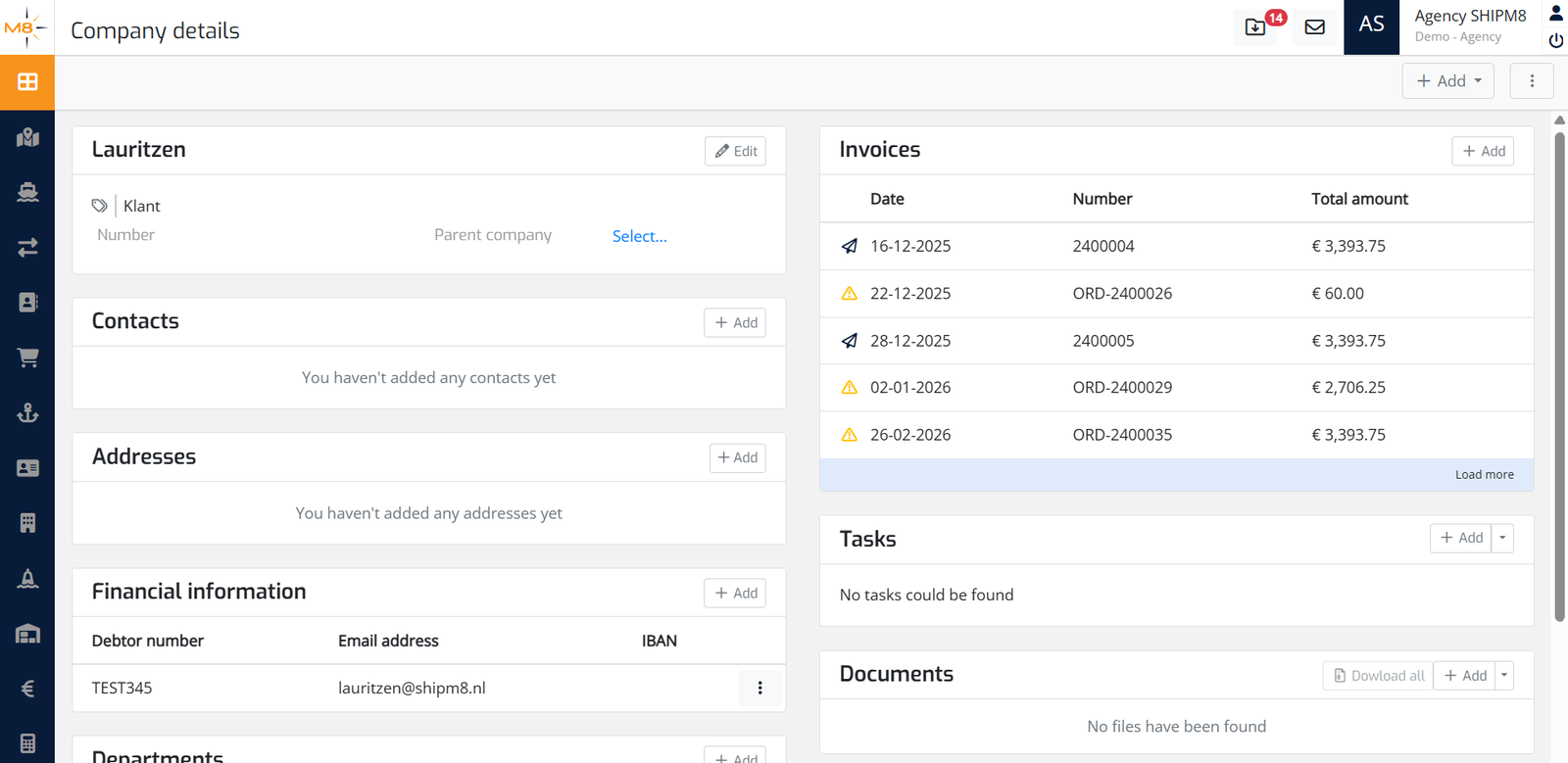
- Left column — company information: core details, contacts, addresses, financial information, and departments.
- Right column — activity and linked records: invoices, tasks, documents, messages, and notes.
At the top of the page, the header bar provides actions that apply to the whole company:
| Control | Description |
|---|---|
| + Add dropdown | Add a new address, contact, financial record, or invoice directly from the header |
| ... (three-dot) menu | Contains the Deactivate action |
Left column
Company Info card
The Company Info card is always visible at the top of the left column.
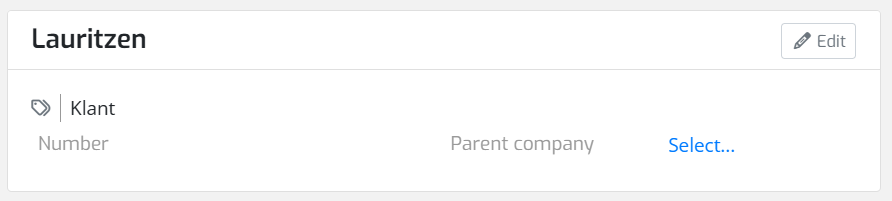
It shows:
- Company name (bold heading)
- Company types — shown as coloured tag badges
- Number — the company's reference number
- Parent company — if a parent company has been set, its name is shown as a link. If no parent is set, a Select... link allows you to assign one.
Click the Edit button (pencil icon, top-right of the card) to open the Edit company dialog and update the company name, number, types, or remarks. This requires the appropriate update permission.
Contacts card
The Contacts card lists all contact persons linked to this company.
Each contact row shows the person's name, job function, and status. Click a contact row to edit it.
To add a contact:
- Click + Add in the Contacts card header, or use + Add > Add contact in the page header.
- Fill in the contact details and click Save.
Contact fields:
| Field | Description |
|---|---|
| Name | Full name of the contact person |
| Function | Job title or role at the company |
| Status | Current status: Active, Left company, or Deceased |
| Is primary contact | Mark this as the main contact for the company (Yes/No) |
| Departments | Assign the contact to one or more of the company's departments |
To remove a contact, click the three-dot menu on the contact row and select Delete.
The Contacts card is only visible when your role includes access to company contacts.
Addresses card
The Addresses card lists all communication and postal addresses for the company.
Each row shows the address type (e.g. Email, Phone, Postal) and its value. Click a row to edit it.
To add an address:
- Click + Add in the Addresses card header, or use + Add > Add address in the page header.
- Select an address type and fill in the relevant fields, then click Save.
Address types and fields:
| Type | Fields |
|---|---|
| Name/label, email address | |
| Phone | Name/label, phone number |
| Fax | Name/label, fax number |
| Postal | Name/label, street lines, postal code, city, state/province, country; option to mark as primary |
| Visiting | Name/label, street lines, postal code, city, state/province, country |
You can also link an address to a specific contact person by selecting from the company's existing contacts.
To remove an address, click the three-dot menu on the address row and select Delete.
The Addresses card is only visible when your role includes access to company addresses.
Financial information card
The Financial information card lists the financial profiles attached to the company. A company can have more than one financial record (for example, different debtor numbers for different billing arrangements).
The card table shows three columns: Debtor number, Email address, and IBAN.
To add a financial record:
- Click + Add in the Financial information card header, or use + Add > Add financial information in the page header.
- Fill in the fields and click Save.
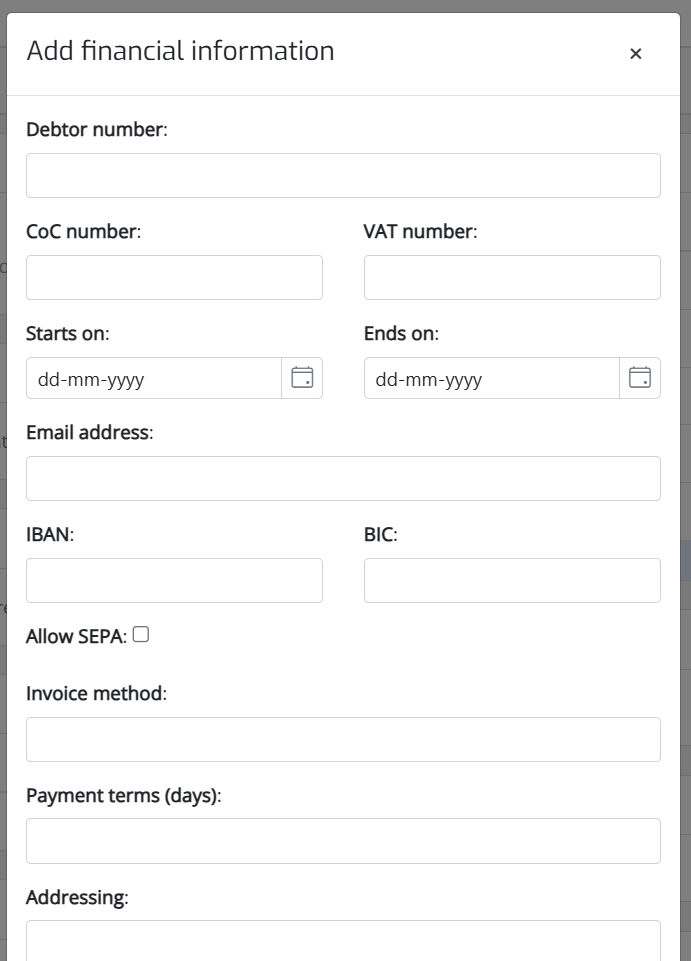
Financial record fields:
| Field | Description |
|---|---|
| Debtor number | The debtor number used in your financial system |
| CoC number | Chamber of Commerce registration number |
| VAT number | VAT / BTW registration number |
| Starts on | The date from which this financial record is valid |
| Ends on | The date on which this financial record expires |
| Email address | Email address used for invoicing |
| IBAN | Bank account number (IBAN format) |
| BIC | Bank identifier code (BIC/SWIFT) |
| Allow SEPA | Check this box to enable SEPA direct debit for this record |
| Invoice method | Numeric code for the preferred invoice delivery method, entered as a number |
| Payment terms (days) | Number of days allowed for payment (0–999) |
| Addressing | Addressee line used on invoices (e.g. attention of a specific person or department) |
| Fixed invoice reference | A reference code included on every invoice for this financial record |
| Alternate invoice template (notifications) | Choose a non-default invoice template for notification sending, if templates are configured in your environment |
The fields appear in this order in the form. None of them are mandatory — you can save a financial record with only the fields you need.
To remove a financial record, click the three-dot menu on the row and select Delete.
The Financial information card is only visible when your role includes access to company financials. If your role allows viewing but not editing, the fields will be read-only.
Departments card
The Departments card lists the internal departments of the company. Each department can have one or more contacts assigned to it.
To add a department:
- Click + Add in the Departments card header.
- Enter the department name and optionally select contacts to assign from the company's contact list.
- Click Save.
Click a department row to edit it. To remove a department, click the three-dot menu on the row and select Delete.
Right column
Invoices card
The Invoices card shows the most recent invoices linked to this company. The table columns are Date, Number, and Total amount.
Click an invoice row to open the invoice detail. To create a new invoice for this company, click + Add in the card header or use + Add > Add invoice in the page header.
If there are more invoices than shown, click Load more at the bottom of the card.
The Invoices card is only visible when your role includes access to invoices.
Tasks card
The Tasks card shows tasks linked to this company.
Click + Add (with the dropdown arrow) to create a new task. The dropdown also offers the option to create a task from a task definition template.
The Tasks card is only visible when your role includes access to tasks.
Documents card
The Documents card holds files attached to this company — for example contracts, certificates, or correspondence.
- Click + Add to upload a new file.
- Click Download all to download all documents in one go.
Messages card
The Messages card shows messages (emails or internal messages) that are linked to this company.
The Messages card is only visible when your role includes access to messages.
Notes card
The Notes card is a free-text space for internal notes about the company.
Click + Add to write a new note.
Deactivating a company
To deactivate a company, click the ... (three-dot) menu in the page header and select Deactivate.
A confirmation dialog will appear with the message Are you sure? — it does not show the company name. Make sure you have the correct company open before confirming. Deactivating a company cannot be undone from this screen.